A Step-by-Step Guide to Exporting Phone Contacts to Excel
Avijit Gayen
21st May 2025
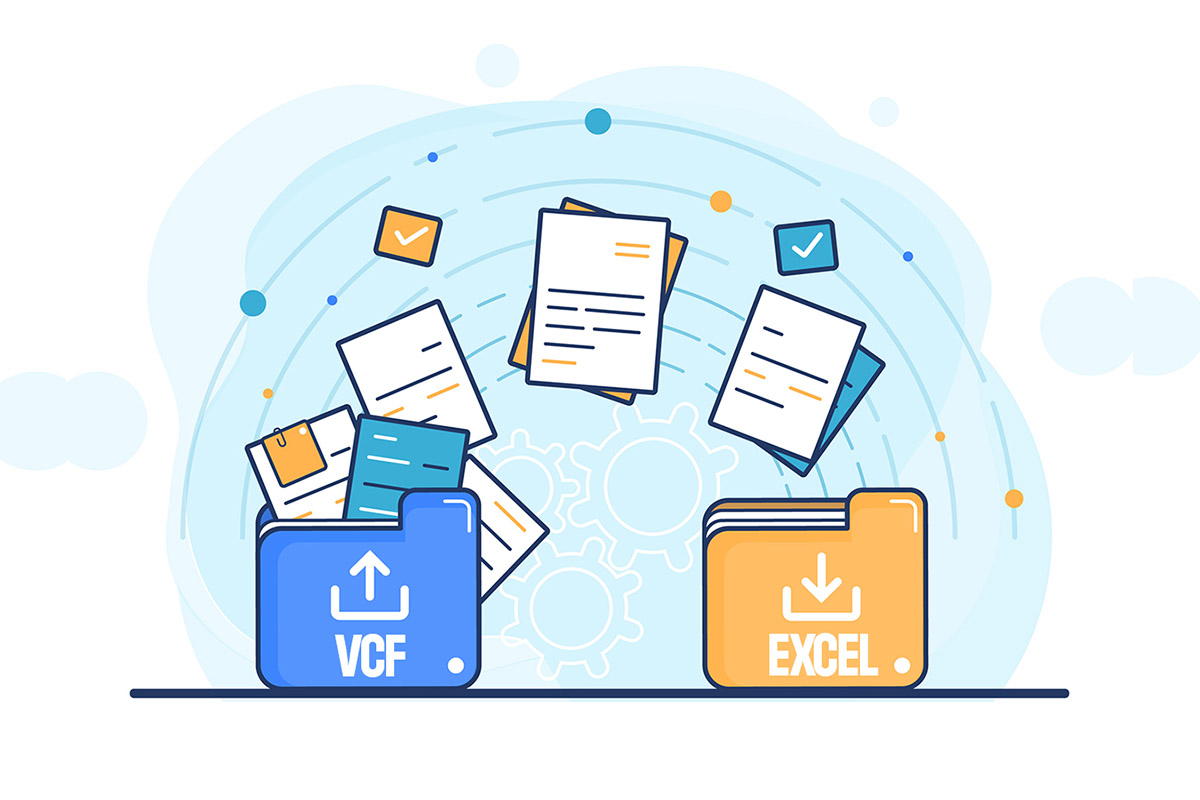
It's a big deal to be able to manage phone contacts well. Exporting phone contacts to Excel is a good idea whether you want to back up your data, organize your business connections, or migrate them from one platform to another. This post goes into detail on how to convert VCF to Excel, vCard to Excel, and even CSV to vCard. It gives you easy, creative ways to make your work easier.
Let's look at ways to make this process go well using an Online VCF to XLSX converter to make things simple and efficient.
Why Would You Want to Export Phone Contacts to Excel?
Exporting contacts to Excel gives you more options. It's great for changing, exchanging, or looking at contact information. Here's why you need it:
- Easily organize: Use spreadsheets to sort, filter, and group contacts.
Spreadsheets give your contacts structure. With just a click, you can slice and dice data however you need.
- Backup Safely: Keep your contacts safe so you can utilize them later.
Don’t lose your network to a phone crash—store it safely. An Excel file is your secure digital vault.
- Cross-platform compatible: Excel files work on any device or software.
Whether it's a PC, Mac, or mobile, Excel just works. It bridges gaps between platforms with zero effort.
- Bulk Editing: Change the information for several contacts at once.
Update names, fix numbers, or add emails in one sweep. Excel lets you power-edit your entire list like a pro.
Convert VCF to Excel Using a Free Online Tool
For quick and simple conversions, using a free online VCF to XLSX converter like vcfexcelconverter.com is a smart choice. It’s especially great for small jobs and doesn't require you to install any software.
Step 1: Export Contacts from Your Phone
- Launch the Contacts app on your phone.
This is your contact hub—where all names and numbers live. Accessing it is your first step toward digital freedom.
- To save contacts as a .vcf file, choose "Export" or "Share."
Exporting creates a compact file that carries your whole contact list. It’s like putting all your contacts in a virtual suitcase.
- Save the file to your computer or to cloud storage like Google Drive.
Choose a safe spot where you can easily grab it later. Cloud storage makes sure it’s never lost—even if your phone is.
Step 2: Use vcfexcelconverter.com
- Go to vcfexcelconverter.com in your browser.
No need to install anything—just open the site. It’s ready when you are, right from your browser.
- Upload your .vcf file directly on the site.
Just drag, drop, or browse and upload—it’s super easy. In seconds, your contact file is ready to transform.
- Choose Excel (.xlsx) as the output format.
This format makes your contacts editable and organized. It’s perfect for managing large lists or detailed info.
- Click convert and download the converted file.
One click, and your file is transformed into a spreadsheet. Download and open to reveal your contact list in full color.
Step 3: Open in Excel
- Start Microsoft Excel.
Fire up Excel and prepare to meet your neatly converted contacts. It’s your new digital contact book.
- Open the .xlsx file you just downloaded.
Click to open and see your contacts lined up like soldiers—each in their own clean column. It's a visual treat.
- The contacts will appear in clean columns.
No jumbled data, no confusion—just names, emails, and numbers exactly where they belong. Editing has never been easier.
- Save or edit as needed.
You can now tweak, add, or delete as much as you want. Excel gives you total control over your contact data.
How to Make the Conversion Process Go Smoothly
To make sure everything goes smoothly:
- Check File Compatibility: Make sure your .vcf file doesn't have any errors.
A clean file means a clean conversion. Always double-check the format before uploading.
- Backup Contacts: Make a copy before changing them.
Keep an original copy safe, just in case. Backups save you from unexpected surprises.
- Check Data: After the conversion, look for fields that are missing or out of order.
Scan the Excel sheet for any oddities. Fixing small glitches now avoids bigger problems later.
- Use Trusted Tools: To keep your data safe, only use well-known VCF to XLS Converter sites like www.vcfexcelconverter.com
Reliable tools respect your privacy and data. Don’t gamble with unknown websites—stick to what’s trusted. - Update Often: To keep your data from being duplicated, make sure your contact list is up to date.
Prune your list, remove duplicates, and stay current. A clean contact list keeps your communication sharp.
In Conclusion, Learn How to Manage Your Contacts
If you know how to do it, exporting phone contacts to Excel is easy. Using a trusted, free tool like www.vcfexcelconverter.com, you can handle VCF to Excel conversions quickly and efficiently.
Following these steps will let you organize, back up, and move your contacts like a pro. Use these tips immediately to take charge of your contact information!
Views (15)
Comments (0)
Duration (0)





.jpeg)

 Facebook
 Instagram
 WhatsApp
 Linked in
 Twitter
 Reddit
Comments (0)
Write a Comment